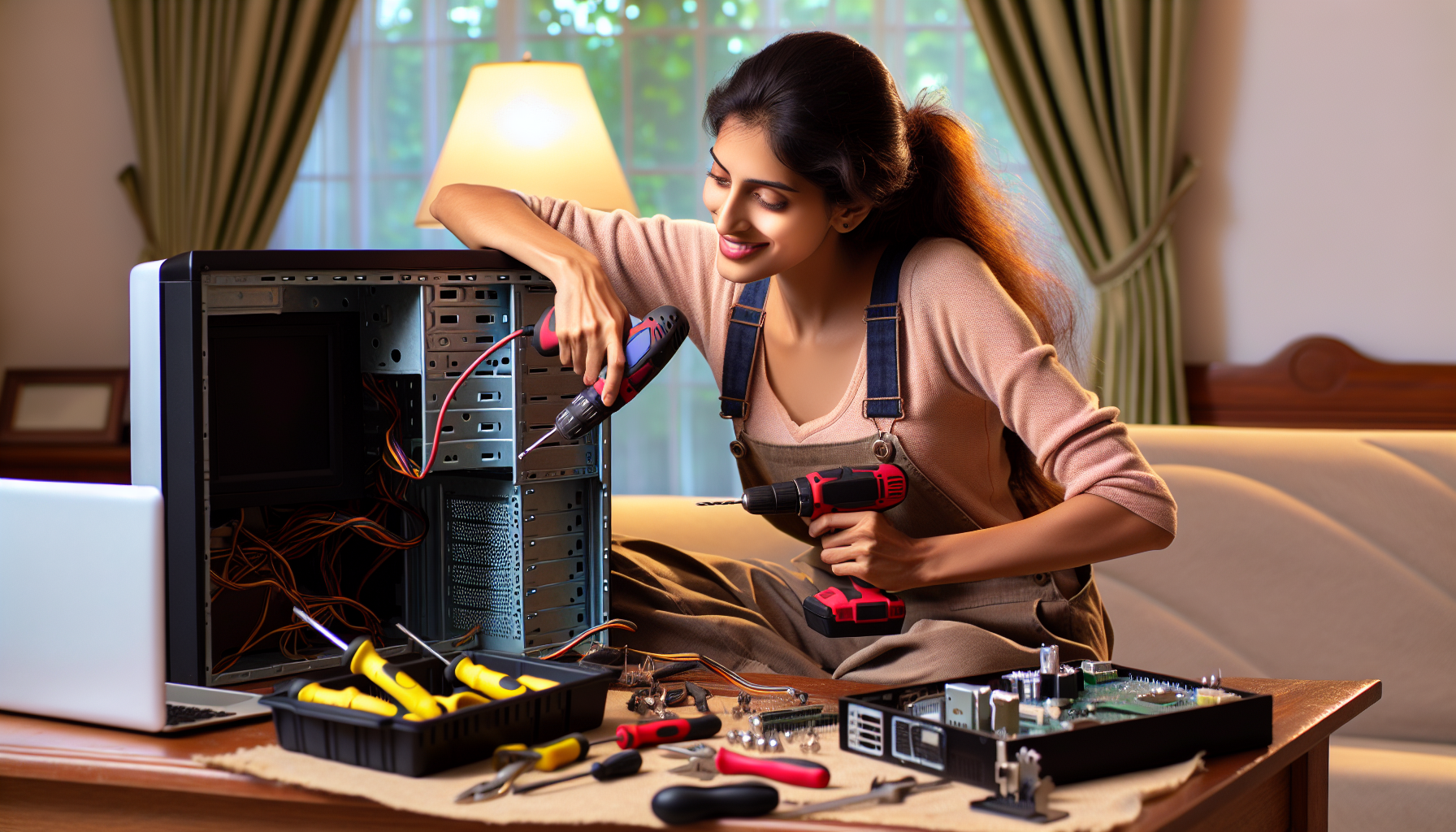
Computer troubleshooting and basic repair repair guide
AI-generated image

Computer Troubleshooting and Basic Repair

Power off computer and disconnect all cables

Electronics Repair
Intermediate
210 minutes
2/2/2026

Affiliate Links: Some product links may earn us a commission at no extra cost to you.

Tools Needed

  • screwdriver set
  • anti-static wrist strap
  • compressed air
  • thermal paste
  • cable tester

Parts & Materials

Available from multiple retailers

AmazonUnavailable
Home DepotMore buying options coming soon
Lowe'sMore buying options coming soon

Available from multiple retailers

AmazonUnavailable
Home DepotMore buying options coming soon
Lowe'sMore buying options coming soon

Available from multiple retailers

AmazonUnavailable
Home DepotMore buying options coming soon
Lowe'sMore buying options coming soon

Available from multiple retailers

AmazonUnavailable
Home DepotMore buying options coming soon
Lowe'sMore buying options coming soon

Available from multiple retailers

AmazonUnavailable
Home DepotMore buying options coming soon
Lowe'sMore buying options coming soon

āš ļø Safety First

  • Use anti-static protection when handling components
  • Power off and unplug computer before opening case
  • Handle components carefully to avoid damage

  • šŸ”§ Tools Needed

  • screwdriver set
  • anti-static wrist strap
  • compressed air
  • thermal paste
  • cable tester

  • šŸ“¦ Materials

  • replacement RAM
  • hard drive
  • power supply
  • cables
  • cleaning supplies

  • šŸ“‹ Step-by-Step Instructions

    1. Power off computer and disconnect all cables


    2. Check all external connections and power cord


    3. Listen for unusual noises during startup


    4. Check if computer reaches BIOS/boot screen


    5. Test with minimal hardware configuration


    6. Reseat RAM modules and expansion cards


    7. Check hard drive connections and operation


    8. Clean dust from fans and heat sinks


    9. Test power supply voltages if equipped


    10. Boot from external drive to test hard drive


    11. Run built-in hardware diagnostics if available


    šŸ’” Pro Tips

  • Document cable connections before disconnecting
  • Keep computer clean and dust-free for reliability
  • Back up important data regularly

  • āŒ Common Mistakes to Avoid

  • Not backing up data before making hardware changes
  • Forcing components that don't fit properly
  • Working without anti-static protection

  • šŸ” Troubleshooting

    Computer won't start

    *Cause:* Power supply, motherboard, or RAM issue

    *Fix:* Check power connections, reseat RAM, test power supply


    Computer starts but no display

    *Cause:* Graphics card or monitor connection

    *Fix:* Check monitor cables and reseat graphics card


    Computer runs slow

    *Cause:* Insufficient RAM, full hard drive, or malware

    *Fix:* Check available storage, scan for malware, consider RAM upgrade


    ā“ Frequently Asked Questions

    Q: How often should I clean my computer

    A: Every 3-6 months depending on environment, more often in dusty areas


    Q: Can I upgrade my laptop

    A: Limited upgrades possible - usually RAM and storage only


    āœ… Checklist

    ☐Power off and unplug
    ☐Check external connections
    ☐Listen for startup noises
    ☐Check boot process
    ☐Test minimal configuration
    ☐Reseat RAM and cards
    ☐Check hard drive
    ☐Clean dust buildup
    ☐Test power supply
    ☐Run diagnostics

    Related Guides

    Television Troubleshooting and Basic Repair

    Unplug TV and check power cord for damage

    Read Guide →

    Smartphone and Tablet Basic Repair

    Power off device and remove SIM card tray

    Read Guide →

    Router and Modem Troubleshooting

    Check all cable connections and power adapters

    Read Guide →

    Related Videos